
1 Simple Origins
I’ve always been somewhat of a recording enthusiast, and since my memory isn’t what it used to be, after I started working out, I needed to track everything: daily weight, body fat percentage, cardio duration, calories burned, strength exercises performed, and weights lifted. At first, I used Apple’s Numbers (a spreadsheet app similar to Excel). The advantage was that it synced between my phone and computer via iCloud—I could use the computer for creating spreadsheets and viewing statistics, and the phone for logging data. However, the drawbacks were quite obvious: it was too bulky, slow to open, required an internet connection, sync often had issues, and I had to organize the data monthly. Now that I have a Picooc smart body fat scale to handle my body metrics, I increasingly wanted to change how I log my workout data.
Surprisingly, I couldn’t find a single app that met my needs. To-do apps only let you check off completion without detailed logging or statistics; running apps don’t support treadmills and rely primarily on GPS data for outdoor runs; fitness apps are overly complex and focus mainly on guided courses…
So, I decided to build a simple recording app myself—one that allows quick logging whenever needed, opens fast, and provides easy access to statistics. That’s how this need arose. I took on the product management and design roles, recruited a friend who does iOS development, and thus this app was born. The initial 1.0 release was fairly limited—it only supported recording with no statistical features, and we hardly promoted it at all. Now, reco 1.2 is available, featuring statistics, an English version, support for iPhone 6/6+ high-resolution screens, and more comprehensive functionality. We invite everyone to give it a try!
2 Who Needs It
If you’re like me and following a plan—whether it’s fitness training, calligraphy practice, tracking running distances, meal intake, or expenses—as long as it’s quantifiable and requires daily tracking of your progress, reco is perfect for you~~
3 User Guide
The main interface looks like this:
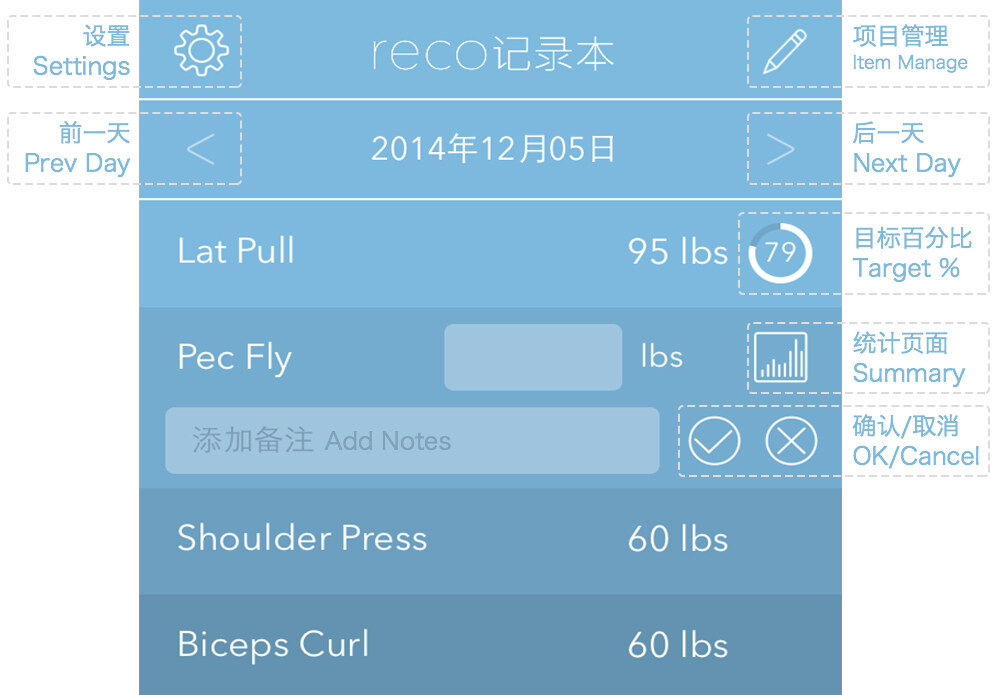
In Settings, you can change the color theme or send us feedback. When you first open the app, the main screen will be blank~~ Start by tapping Project Management in the upper-right corner to add the items you want to track one by one.
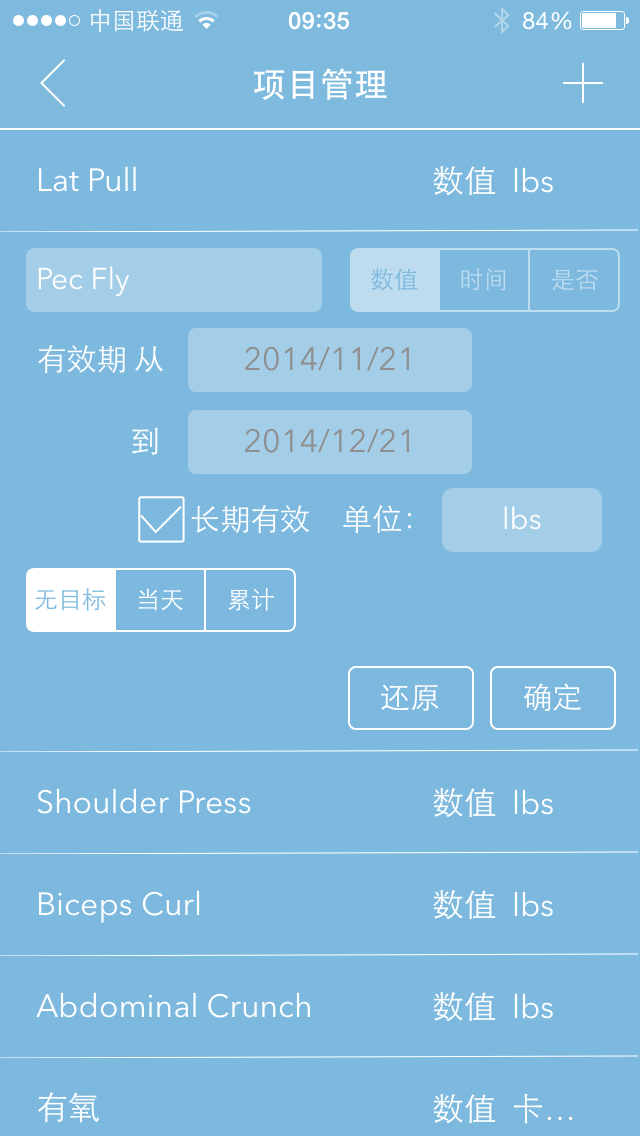
Each item in reco can be assigned one of three types. Once selected, the type cannot be changed:
- Numeric: This is the most commonly used type, typically chosen for general recording. Units can be customized, and values are stored with one decimal place.
- Time: Essentially the same as numeric values measured in minutes, but this type is designed specifically to accommodate hour-based displays.
- Yes/No: This type only allows selecting Yes or No, useful for tracking whether a task has been completed.
Each item can have a specified time range or be set for long-term tracking. You can also set goals for each item—either daily targets or cumulative long-term goals.
To delete an item, simply swipe left; note that all records associated with that item will also be deleted.
Once you’ve added your items, return to the main screen to start recording. Each day when you open the app, it automatically displays today’s data. Just tap the item you wish to record, enter your data using the keyboard that pops up, then press Confirm. To modify existing data, simply input new values. If you’d like to delete a particular entry, just enter 0.
The Statistics feature provides maximum, minimum, average values, and total number of entries recorded within a selected period as well as overall.

4 Download Here
http://www.reco.so
5 Future Features
In the future, we plan to add data backup and synchronization, social media sharing, push notifications, and more~~ We hope reco proves helpful to you~~

Support



Read this article on WeChat