
It seems this article has a very niche audience, so if you don’t know what this title means… you can probably skip it, haha.
One important feature of Apache is that URLs can be completely independent of files; actual URLs can be modified using Rewrite rules.
This feature is actually very useful. Here are some of the most common applications:
- When changing domains or moving files, ensure old addresses still access the corresponding files.
- Prevent hotlinking by allowing only specific websites to reference files.
- Pseudo-static URLs: hide .php filenames, converting them to .html or clean path formats.
- Customize 404 and other error pages.
Recently, I’ve been tinkering with my two websites, so apart from the hotlink protection feature which I didn’t use, I’ve tried out all the others…
I have to say, this stuff is really counter-intuitive, especially when you’re not very familiar with it. You find that copying someone else’s code doesn’t help because you can’t understand it or figure out how to modify it…
Trying to add your own requirements leaves you completely lost, so I inevitably spent half a day studying it…
Alright, let me briefly introduce this thing…
First, let’s talk about what .htaccess is:
The .htaccess file (or “distributed configuration file”) provides a method for changing configuration on a per-directory basis. That is, placing a file containing one or more directives in a specific document directory applies those directives to that directory and all its subdirectories. As a user, the commands available to you are restricted. Administrators can configure this via Apache’s AllowOverride directive.
In summary, the htaccess file is a configuration file within the Apache server responsible for web page configurations in relevant directories. Through the htaccess file, we can achieve functions such as: web page 301 redirects, custom 404 error pages, changing file extensions, allowing/blocking access to specific users or directories, disabling directory listings, and configuring default documents.
To enable .htaccess, you need to modify httpd.conf to enable AllowOverride, and you can use AllowOverride to restrict the use of specific commands. If you need to use a filename other than .htaccess, you can change it using the AccessFileName directive. For example, if you need to use .config, you can configure it in the server configuration file as follows: AccessFileName .config.
Of course, these settings can actually be written directly into httpd.conf or virtual host configuration files in vhosts,
but .htaccess offers advantages like easier control and modification without needing to restart the service.
Its scope of control covers the folder it resides in and its subfolders, so it can be used in subfolders for more granular control.
The downside is also obvious: performance considerations. If AllowOverride enables .htaccess files,
Apache must search for .htaccess files in the current directory and all parent directories for every single request,
even if no .htaccess file exists. Therefore, enabling .htaccess leads to decreased performance regardless of whether it is actually used.
Of course, for a small site like mine, there’s really no need to worry about these performance factors, so I decisively started practicing~~~~
Usually, this file is located in the root directory of a domain. If it doesn’t exist, create a new one; if it does, modify it directly.
However, before modifying, I suggest you first understand the original content… to avoid conflicts.
Let’s start with its basic syntax:
<IfModule mod_rewrite.c>
	RewriteEngine On
	语句。。。。
</IfModule>
Here, RewriteEngine On and Off can easily control whether all subsequent statements are effective.
This is also useful during debugging; additionally, a single line can be commented out by adding # at the beginning.
Okay, now let’s talk about commonly used statements:
Typically, every redirect works like this:
First, one or more RewriteCond serve as conditions; if the conditions are met,
a RewriteRule performs the redirection.
Common variables include HTTP_HOST: domain name, REQUEST_URI: the part after the domain name, and REQUEST_FILENAME: the filename.
Finally, there are parameters; common ones include[NC]: Case-insensitive,[R]: Redirect,[L]: Stop processing further rules.
Conditions utilize regular expressions. For those familiar with regex, this makes things much easier,
but for those unfamiliar, it can be baffling. You can supplement your knowledge here:http://zh.wikipedia.org/zh/正则表达式
The main thing to note is the start and end anchors; for example, if checking for empty, it would be ^$.
For more variable parameters and their meanings, refer here:http://www.askapache.com/htaccess/mod_rewrite-variables-cheatsheet.html
Let’s look at a few examples. For instance, to redirect all visits to domain.com to www.domain.com
(of course, the reverse is also possible, or it can be used to replace domains).
Here, the condition is that HTTP_HOST matches domain.com, and the rule is to redirect to www.domain.com while preserving the rest of the URL.
Case-insensitive, permanent redirect.
RewriteCond %{HTTP_HOST} ^domain.com [NC]
RewriteRule ^(.*)$ http://www.domain.com/$1 [R=301,L]
Similarly, as mentioned in my previous blog post, redirect requests for /wp-content/uploads/ to cdn.cnsjw.cn/uploads/:
RewriteCond %{REQUEST_URI} ^/wp-content/uploads/
RewriteRule /wp-content/uploads/(.*) https://img.cnsjw.cn/$1 [R=301,L]
A redirect here implies telling browsers and search engines that this address has changed permanently,
so after the redirect, it will jump directly to the new address.
Then there is customizing error pages; the syntax is very simple:
ErrorDocument 404 /404.html
This achieves a custom 404 error page.
However, the most common use case for Rewrite isn’t redirection, but pseudo-static URLs.
Take eitdesign.com as an example. The previous page logic for this site was
eitdesign.com/home, eitdesign.com/about, etc. At that time, it wasn’t pseudo-static, but truly static…
The implementation method involved creating folders like home, about, etc., and using an index file inside to output the current page.
The file structure of the entire site at that time was as follows:
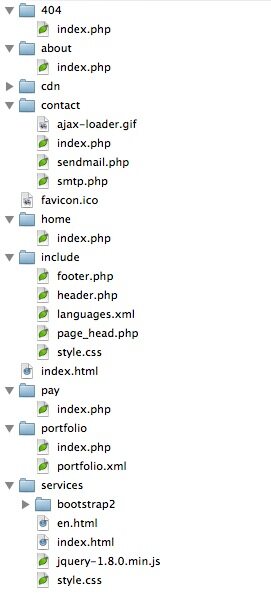
There were many problems with this method. For example, every page had to be written individually, which is only feasible for simple, small websites.
Modifications were troublesome, and since all page filenames were ‘index’, opening too many became chaotic…
Because there was also an English version, but there was simply no way to create another /en folder and rewrite all these files…
So I used ?lan=en to control the language version. Back then, lacking this parameter meant Chinese version; having it meant English version.
This resulted in inconsistent filenames and was clearly not user-friendly.
The approach adopted now is that, except for the service pages, all other pages are handled entirely by index.php.
Content is read from XML, and the code only implements functional parts. The current file structure looks like this:
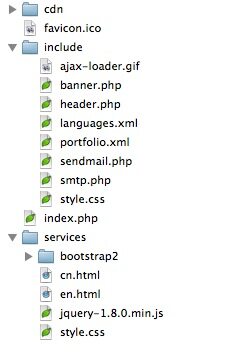
So, all services requests undergo a separate rewrite, while everything else is rewritten directly to index.php?p=.
This way, you just need to check the passed ‘p’ parameter in index.php. For example, visiting http://www.eitdesign.com/home/en
is actually accessing http://www.eitdesign.com/index.php?p=home/en
Handling this parameter with PHP becomes much easier. Using explode to split by /, and checking the parts before and after the /,
you can easily determine which page and which language version to access.
Additionally, you must first verify that the request is not for an existing file or folder name before applying the Rewrite… otherwise, normal files will become inaccessible.
RewriteCond %{REQUEST_URI} services/en/
RewriteRule . /services/en.html [L]

RewriteCond %{REQUEST_FILENAME} !-f
RewriteCond %{REQUEST_URI} services/
RewriteRule . /services/cn.html [L]

RewriteCond %{REQUEST_FILENAME} !-f
RewriteCond %{REQUEST_FILENAME} !-d
RewriteRule ^(.*)$ index.php?p=$1
And thus, pseudo-static URLs are achieved…
Another requirement is to redirect visits to www.eitdesign.com to www.eitdesign.com/home/
RewriteRule ^$ /home/ [R=301,L]
Note here that if configured in vhosts, when accessing www.eitdesign.com,
REQUEST_URI is / rather than empty; it is only empty when configured in .htaccess.
In conclusion, I’m actually a beginner myself, but I can still manage to write some rules…
Key points to pay attention to include:
- Set proper start and end markers for conditions when making judgments; otherwise, it becomes a substring match.
- Avoid duplicate redirects and issues like infinite loops.
- Also mind the order of statements. If a condition is met, you can add[L]at the end to stop further processing.
- Pay attention to subdomains. If a subdomain corresponds to a subdirectory, the parent directory’s .htaccess will also apply to the subdomain, potentially causing errors. You can disable rewriting in the subdomain directory’s .htaccess.
Configuring your own server is actually quite fun. Remember to frequently check various error logs;
this allows you to continuously improve your code and server settings.

Support



Read this article on WeChat