
It’s been a long time since I last wrote a blog post, so let’s do another short technical article.
A long time ago, web page layouts were implemented using tables. The downside was that content and layout were mixed together, making the code look very messy and even messier to write. Images were sliced up haphazardly, losing their original structure entirely just for the sake of layout. The upside was that for narrowband networks, loading many small images simultaneously acted somewhat like multi-threading, which was faster than loading one large image. Of course, we don’t need to worry about this issue at all nowadays. Today, most web pages use CSS for layout, which has many benefits. Content and layout are completely separated, and simply modifying the CSS can give a website a brand-new look. There is a book called “CSS Zen Garden” where the entire book discusses the same single HTML page, achieving completely different layouts and effects through hundreds of different CSS files, demonstrating the power of CSS.
Many CSS beginners fail to understand several crucial concepts in CSS, leading to unexpected results when writing or modifying CSS code. Let me start by discussing four aspects~~~~~~
1. Browser Support for CSS
This issue is complex, but it mainly boils down to whether properties are supported and browser default settings.
Try to avoid using properties not supported by mainstream browsers; after all, you cannot ignore the majority of users… Current mainstream browsers include IE, Chrome, Safari, Firefox, and Opera. Among these, IE is the most annoying, especially IE6 and IE7, which have various bizarre bugs that can only be analyzed and resolved on a case-by-case basis when encountered. It is recommended to adhere to standards when writing HTML and CSS and to test across various browsers before publishing.
Why do different browsers render effects differently?
This is likely because different browsers have default values for certain properties. For example, for the body element, most browsers have a default property of padding: 3px, whereas Opera has a default property of margin: 3px. So if you only set body { padding: 0; }, it will have no effect in Opera. The solution is to use a snippet of code to unify default values before writing your own CSS:
/* Reset default browser CSS.
Based on work by Eric Meyer:
http://meyerweb.com/eric/tools/css/reset/index.html
-------------------------------------------------------------- */

html, body, div, span, applet, object, iframe,
h1, h2, h3, h4, h5, h6, p, blockquote, pre,
a, abbr, acronym, address, big, cite, code,
del, dfn, em, font, img, ins, kbd, q, s, samp,
small, strike, strong, sub, sup, tt, var,
b, u, i, center,
dl, dt, dd, ol, ul, li,
fieldset, form, label, legend,
table, caption, tbody, tfoot, thead, tr, th, td {
    background: transparent;
    border: 0;
    margin: 0;
    padding: 0;
    vertical-align: baseline;
}
body {
    line-height: 1;
}
h1, h2, h3, h4, h5, h6 {
    clear: both;
    font-weight: normal;
}
ol, ul {
    list-style: none;
}
blockquote {
    quotes: none;
}
blockquote:before, blockquote:after {
    content: '';
    content: none;
}
del {
    text-decoration: line-through;
}
/* tables still need 'cellspacing="0"' in the markup */
table {
    border-collapse: collapse;
    border-spacing: 0;
}
a img {
    border: none;
}
2. CSS Specificity
Consider the following example:
<div id="aaa">
    <h1>LINE1</h1>
    <div class="bbb">
        <h1>LINE2</h1>
    </div>
</div>
The CSS is defined as follows:
#aaa h1 {
     color: red;
}
.bbb h1 {
    color: green;
}
h1 {
    color: blue;
}
What colors will the output LINE1 and LINE2 be respectively?
The specific algorithm for CSS specificity is as follows; the weights corresponding to the following four types of selectors are:
- Inline selector (i.e., using the style attribute directly in the webpage): 1,0,0,0
- ID selector: 0,1,0,0
- Class selector: 0,0,1,0
- Element selector: 0,0,0,1
Add up the count for each type to determine its final specificity.
- Styles declared with !important have the highest priority; calculation only occurs if there are conflicts.
- If specificity is equal, the style that appears last is selected.
- Inherited styles have the lowest priority.
Although it is rare to encounter 10 selectors of the same type, if you do… the value does not carry over…
So simply put, basically:
Inline selector > ID selector > Class selector > Element selector
Applying this to the example:
#aaa h1  /* 一个ID选择器,一个元素选择器,优先级是0,1,0,1 */
.bbb h1  /* 一个Class选择器,一个元素选择器,优先级是0,0,1,1 */
h1  /* 一个元素选择器,优先级是0,0,0,1 */
Therefore, LINE1 is red, and LINE2 is also red.
So if you want LINE2 to be green, you need to change it to:
#aaa .bbb h1 {  /* 优先级是0,1,1,1,最高 */
    color: green;
}
3. CSS Positioning Issues
Meanings of position property values:
- static: Default. Elements are arranged one after another in the document flow according to their order in the HTML.
- relative: Relative positioning. Positioned relative to the element’s own original position. Use top, left, right, and bottom to specify the offset. The space originally occupied by the element is preserved.
- absolute: Absolute positioning. Positioned relative to the nearest relatively positioned ancestor element. The element itself does not occupy any space.
- fixed: Fixed positioning. Positioned relative to the browser window. The element itself does not occupy any space.
We only need to discuss relative and absolute positioning:
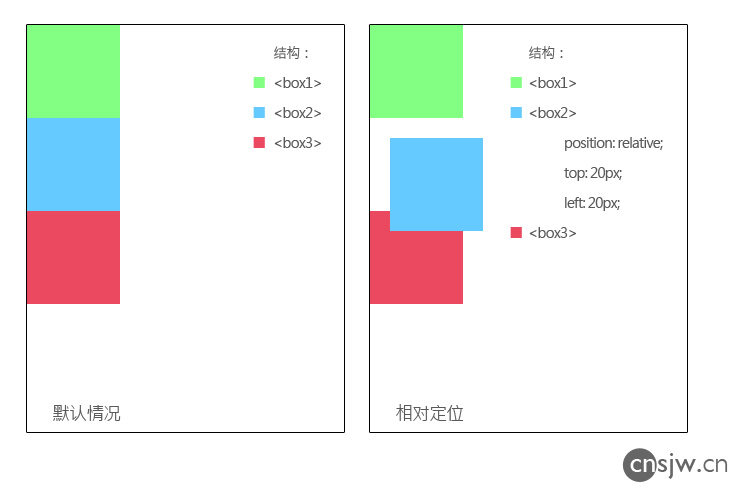
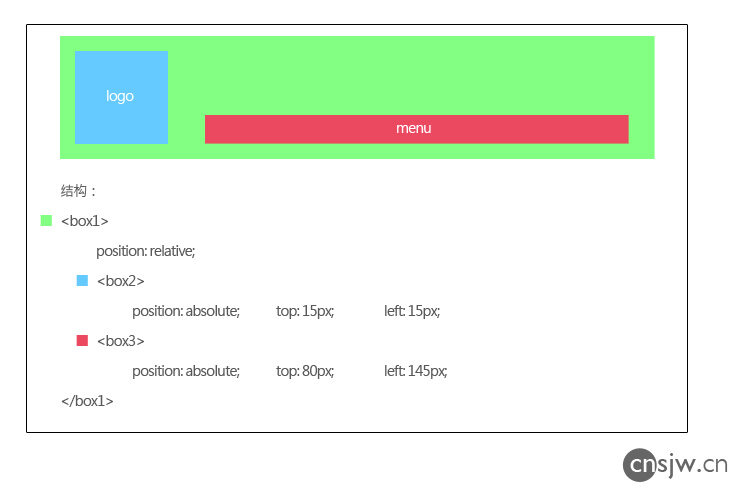
Relative positioning: As we can see, because the space occupied by the element is preserved, there will be a strangely unusable gap. Also, because it is offset, it can easily overlap other elements. Therefore, in practical use, relative positioning is rarely used for offsetting itself; instead, it is primarily used to provide a positioning reference for its absolutely positioned child elements.
Absolute positioning:
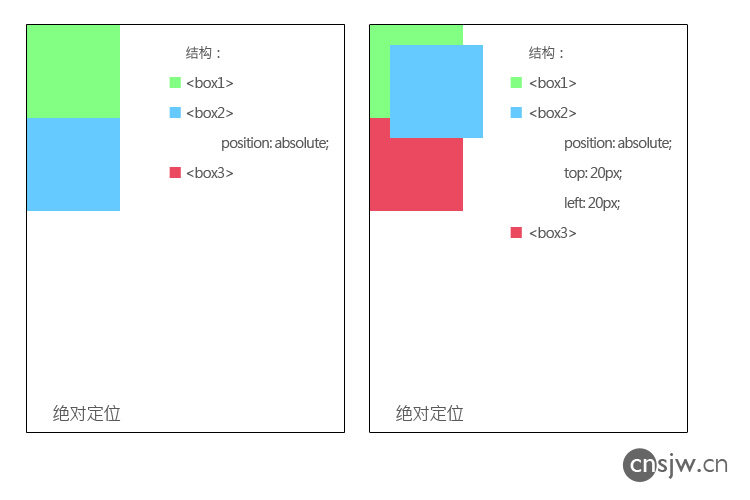
As we can see, once an element is absolutely positioned, it no longer occupies any space. If no position is specified, it remains in its original location but will overlap elements that move up due to the lack of occupied space. If a position is specified, it is positioned relative to the nearest relatively positioned ancestor element; if none exists, it is positioned relative to the page element. Thus, absolute positioning becomes the preferred method for positioning small elements within a larger container:
4. Floating
Floating is actually quite simple, but note the following two points:
Once an element is floated, it no longer occupies space. Therefore, if only one element is floated, subsequent elements will move up and be obscured by the floated element. Thus, all sibling elements should be floated.
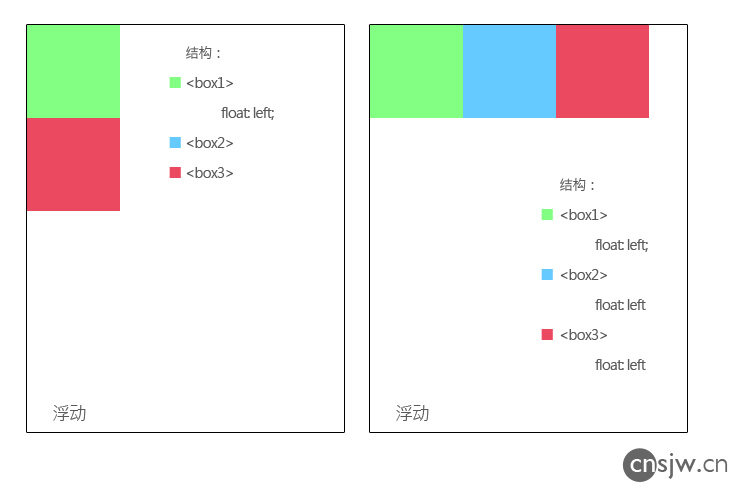
Furthermore, if all child elements within a parent element are floated, the parent element becomes empty and will not wrap around them. Therefore, a clearing element must be added at the end.
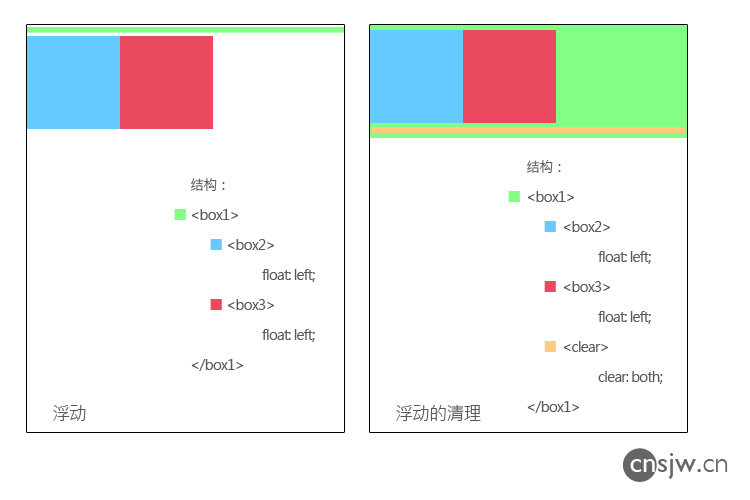
.clear {
    clear: both;
}


Support